Creating and Editing PDFs within a Template
Upload PDF
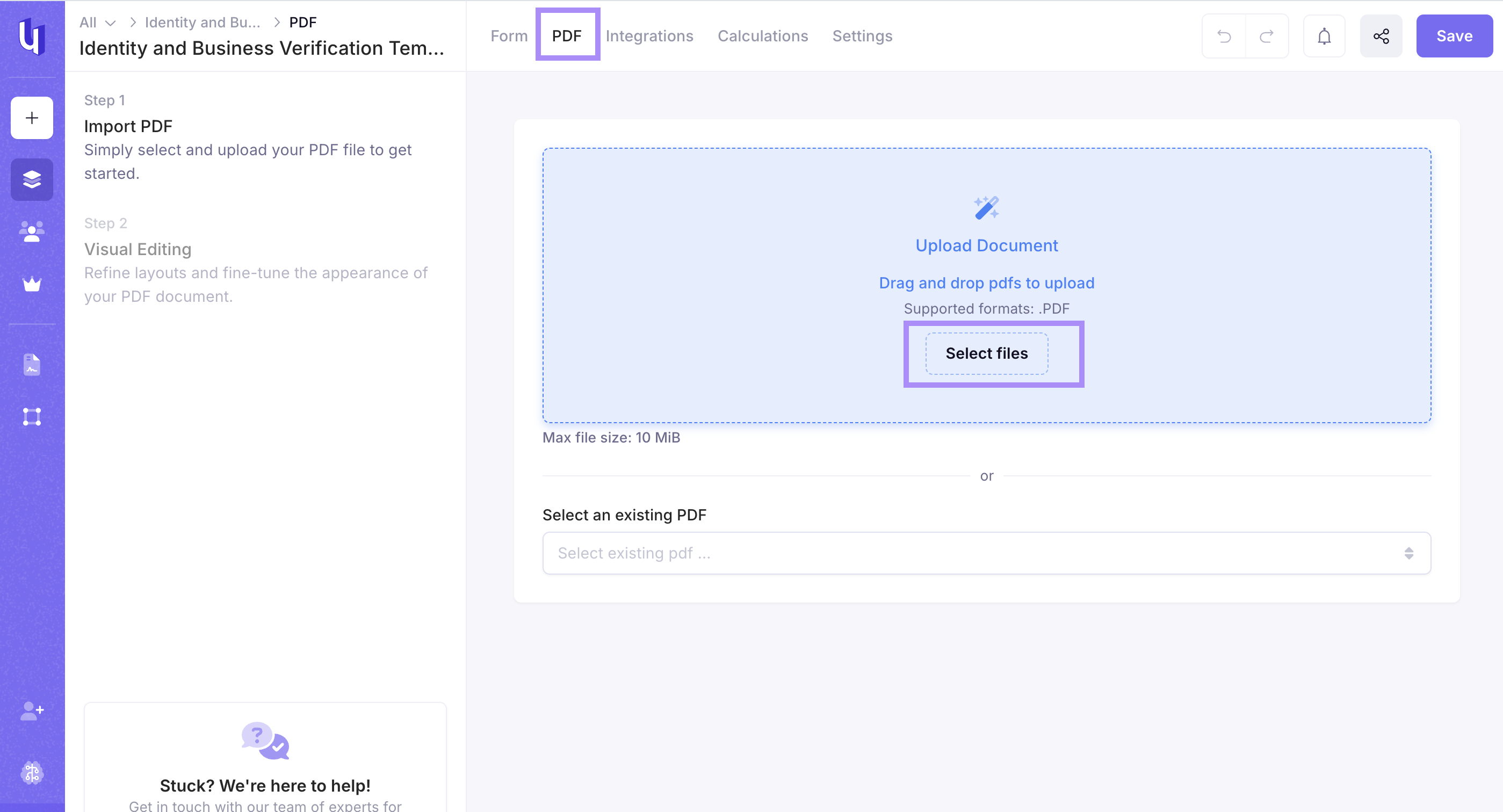
If there is no PDF connected to the Template you will be prompted to upload a new PDF or to select and existing mapped PDF
- File size limit is 10 megabytes (MB)
Visual Editing
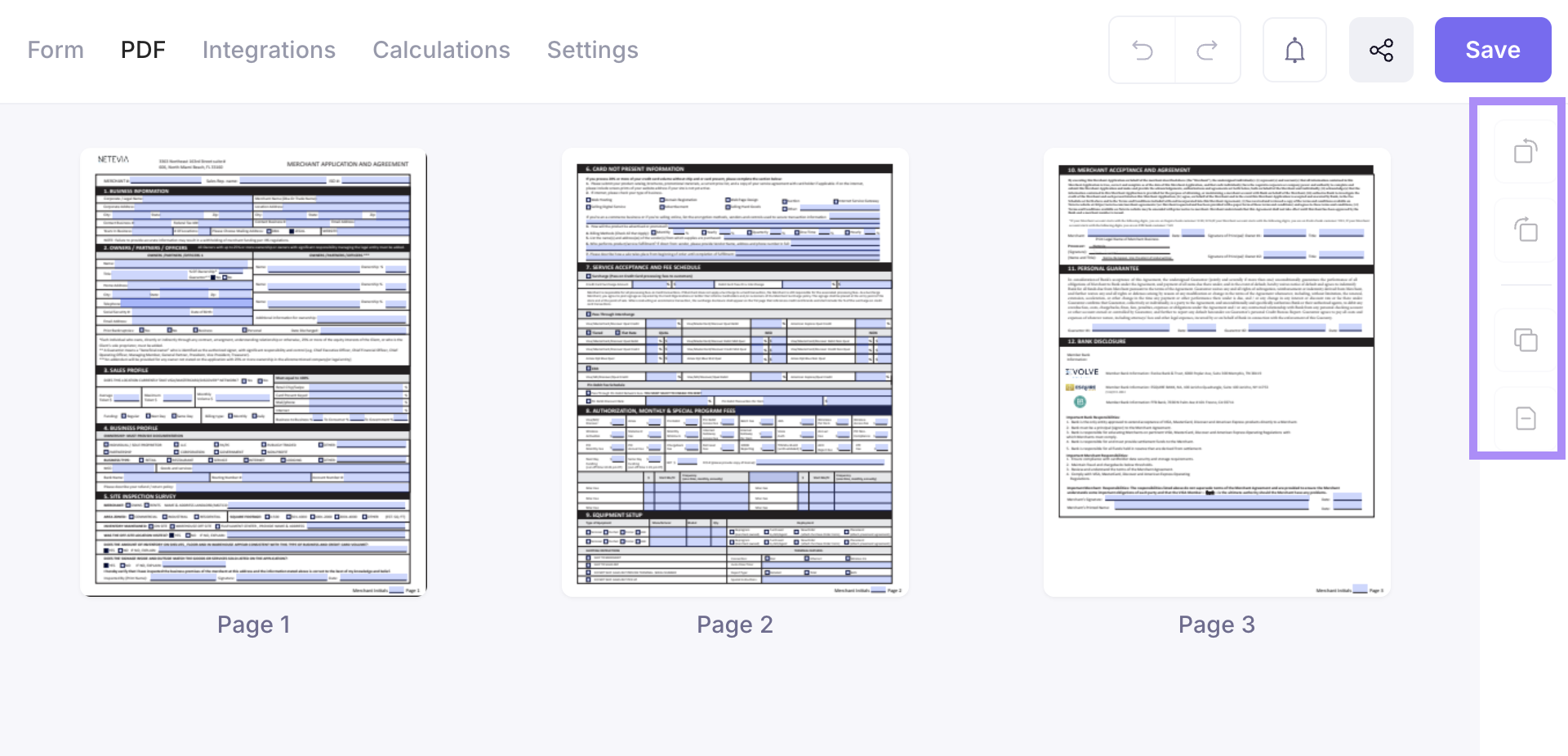
- You can duplicate, remove, reorder, or rotate pages within the visual editor using the icons on the right-hand side
- To reorder the pages just click and drag the page to your desired location
- The fillable fields will be highlighted blue on this page
*If you need to compress, unlock, or prepare a PDF before uploading to Under, here is a link to ilovepdf.com
Swap PDF
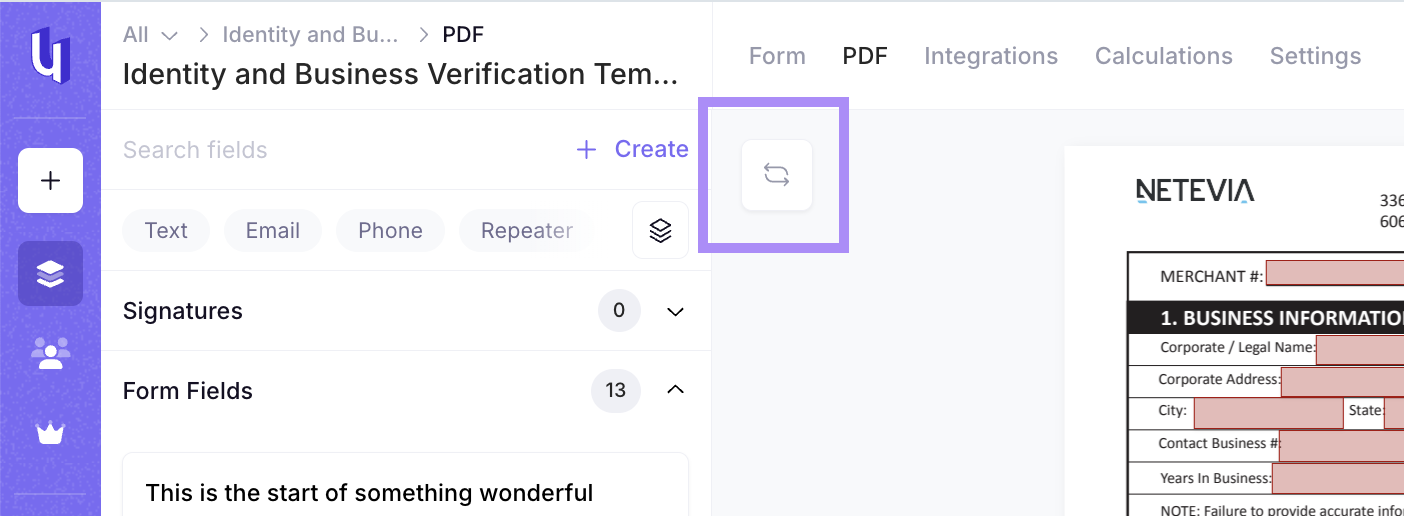
Hit the Swap PDF Icon in the top left corner
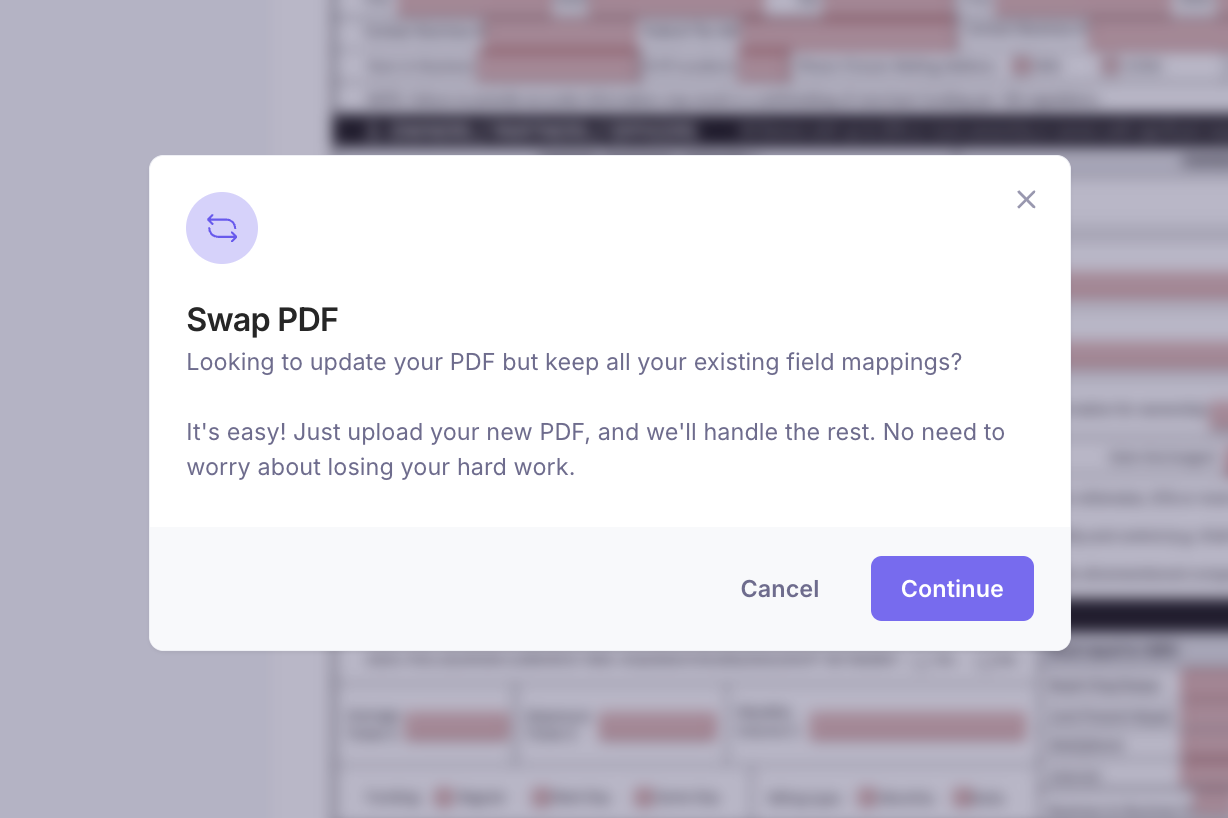
Hit Continue
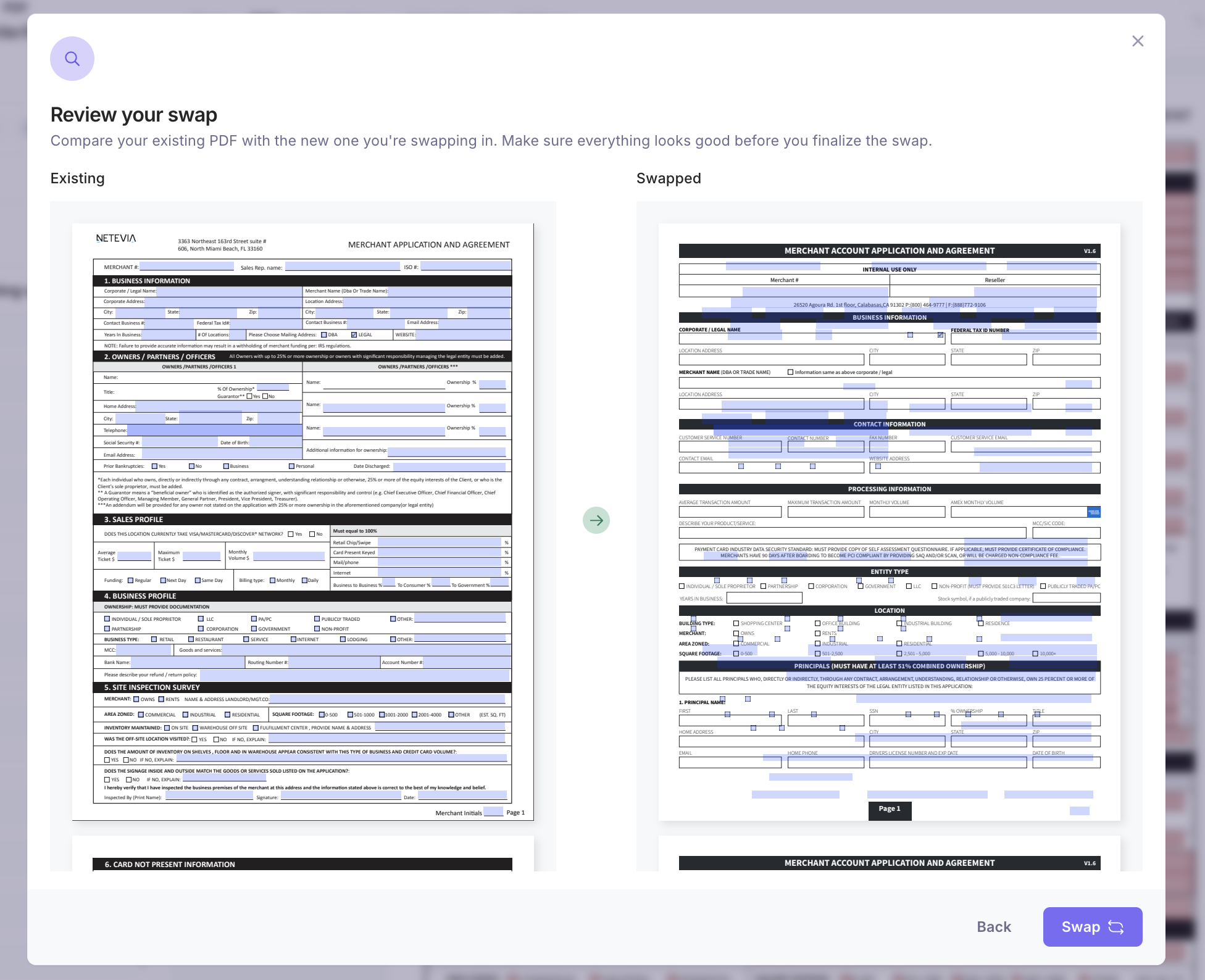
Review your swapped PDF and hit Swap
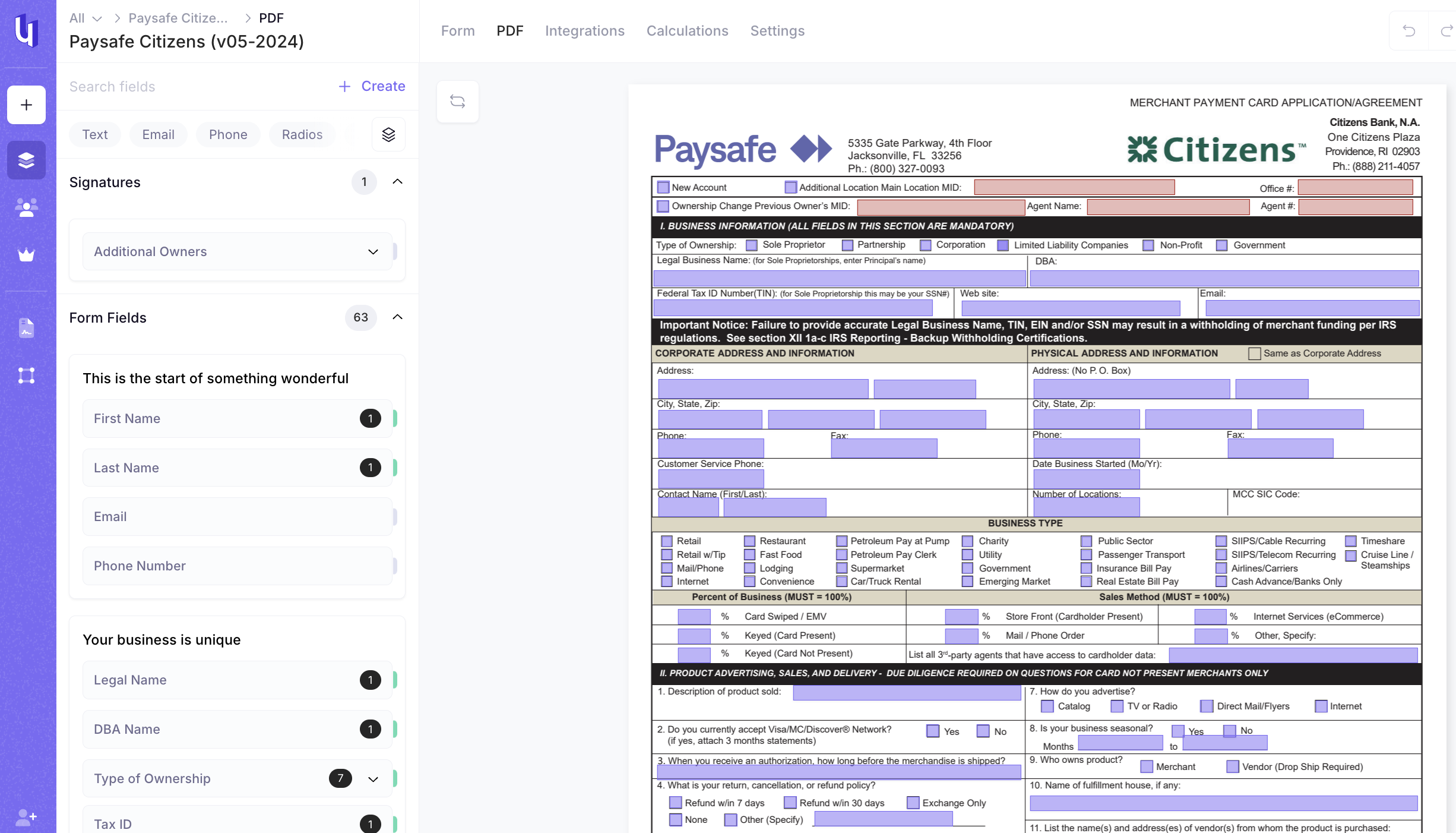
Left-hand sidebar in the PDF Mapper
You can view by the section on the form or you can view all fields by clicking on the layers icon
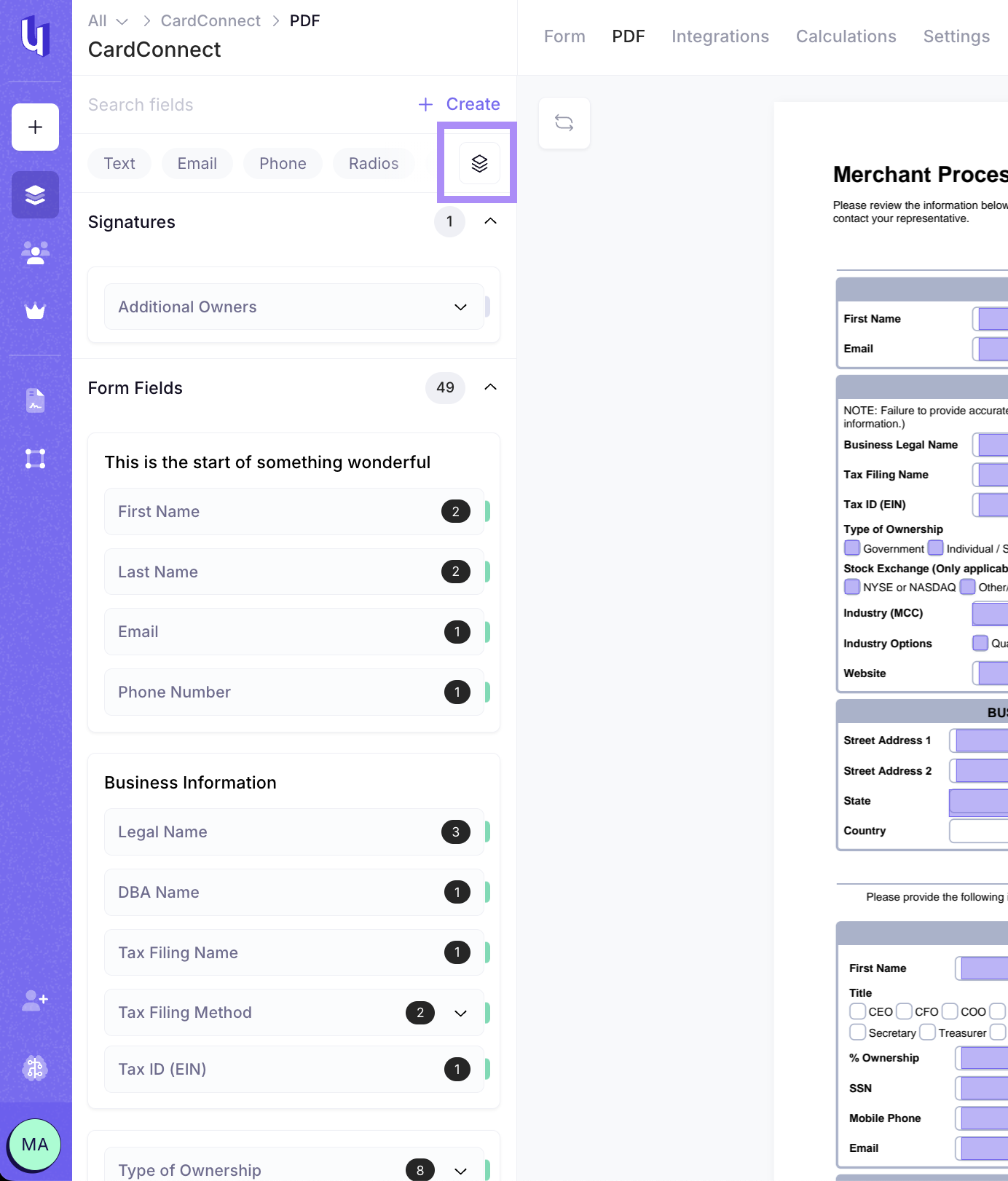
Fields that are already mapped to the PDF will have a green cap at the end of the field
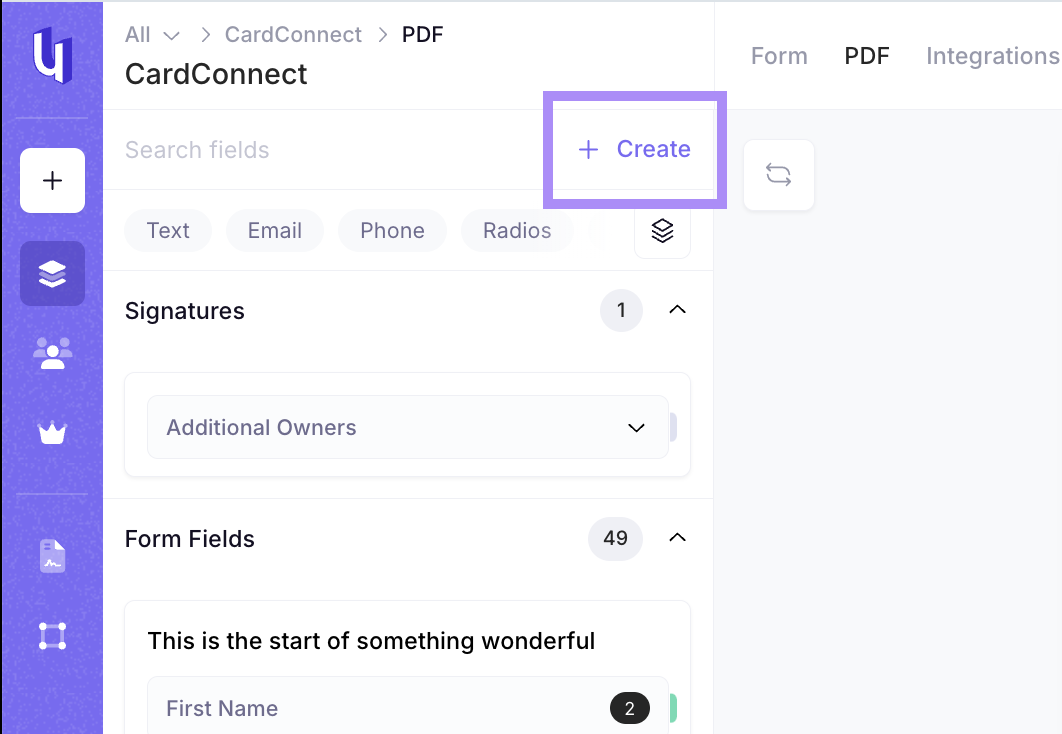
+ Create
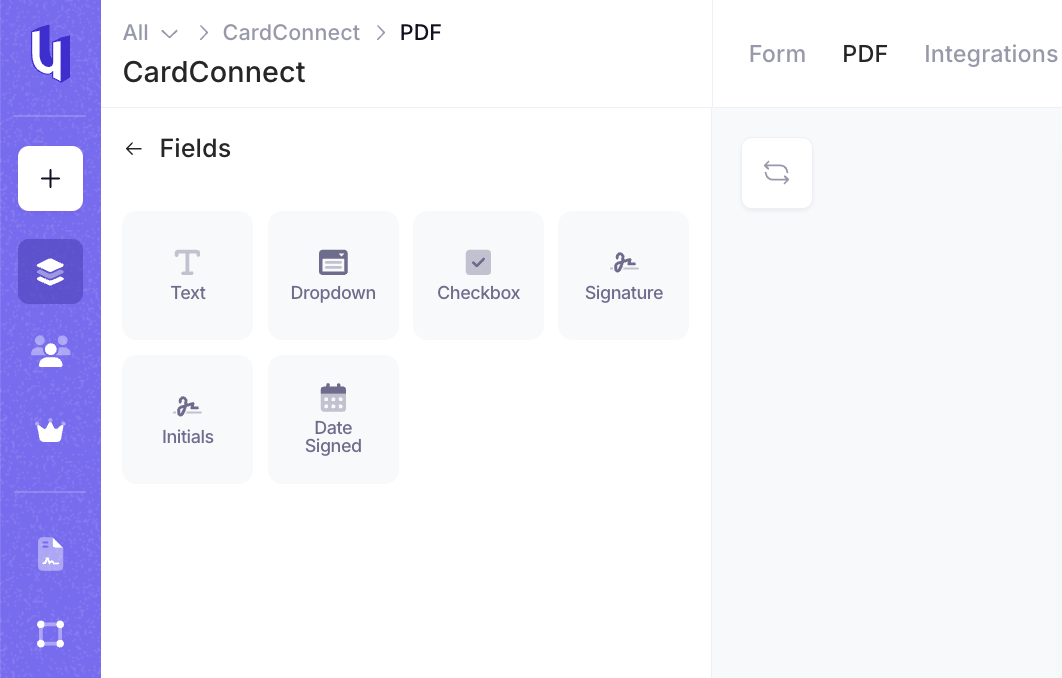
Text Field
- This field allows a user an end user to enter any text
- Letters, numbers, and special characters are allowed
- Example would be First Name, Address Line 2, or Return Policy
Dropdown Field
- This field allows a user to choose from a list of choices
Checkbox Field
- This is a True or False field
Signature, Initials, and Dat Signed Fields
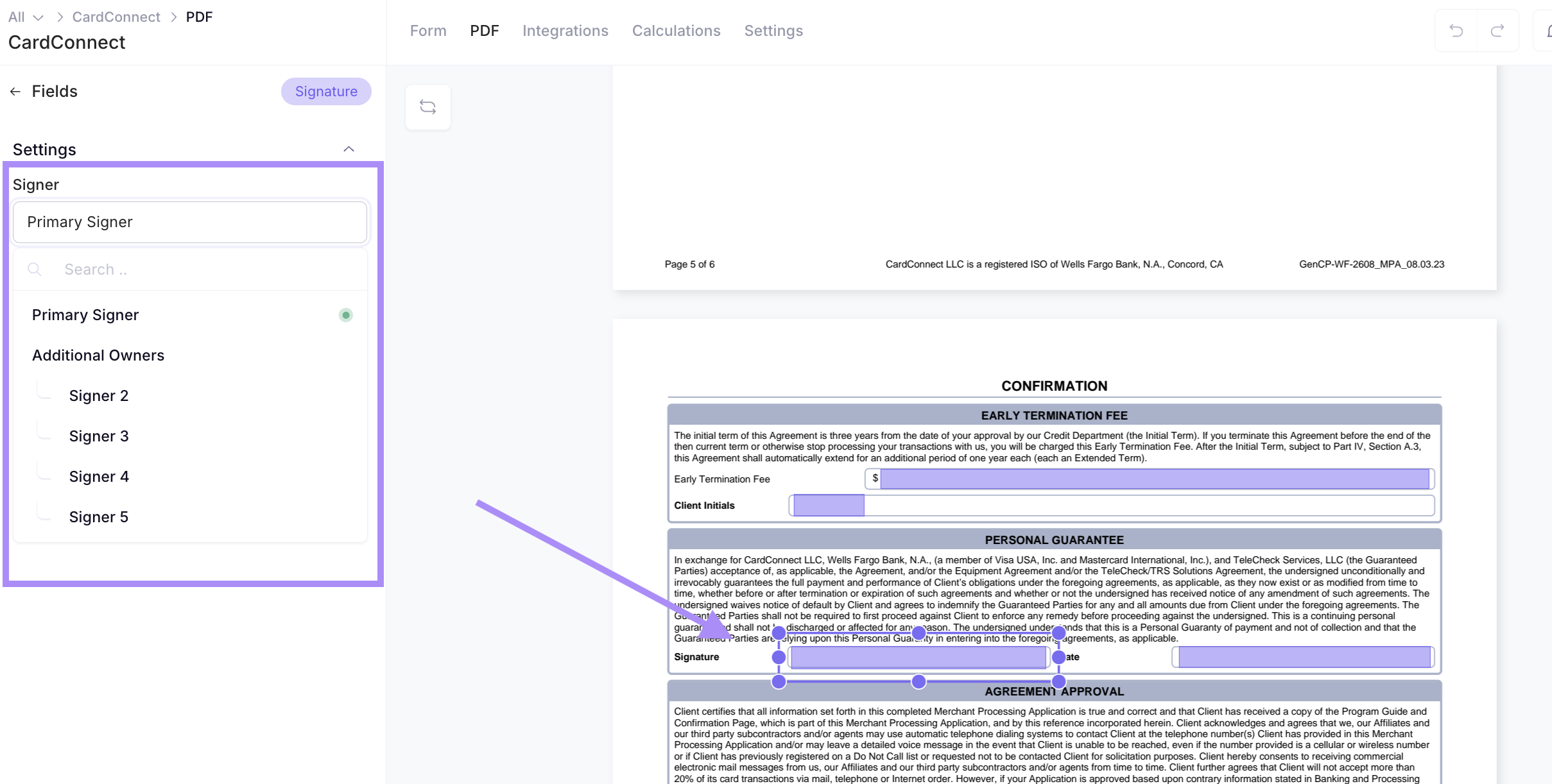
- By default this is correlated to the Primary Signer
- If you have used the Additional Owner field from the Under Dictionary or the Additional Signer field on the Form you will have the option to correlate the signature field to other signers
- You can also mark this as an Agent Signature field
- Initials work the same as the Signature Field
- Date Signed will be automatically populated after the correlated user signs the application
Clicking into an individual field on the PDF
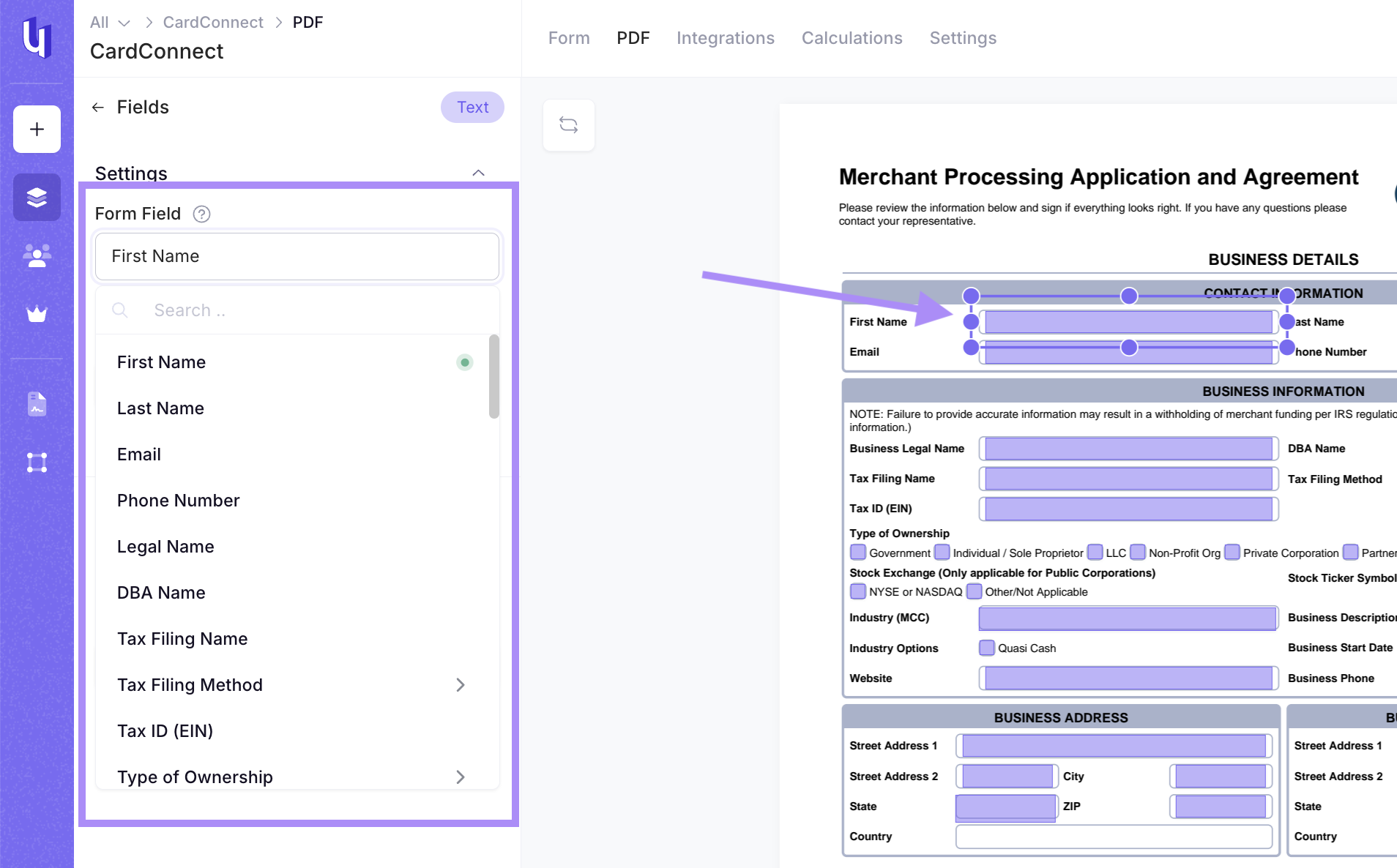
- Left-hand sidebar
- Form field dropdown
- This allows you to search through all fields on the form and connect it to the PDF
- Default value
- This allows you to enter a default value
- Read Only
- This removes the ability for the end-user to edit this field while still being visible
- Appearance
- You can edit the text color and size
- You can edit where the text sits in the box
- You can wrap the text
- 3 Ellipses at the bottom
- You can add a field to the form if you created it from the PDF fields
- Form field dropdown
On the left-hand sidebar
- Fields mapped on the PDF will have a green cap at the end of the field
- Fields not mapped on the PDF will have a gray cap at the end of the field
- Fields that have been mapped onto the PDF = > 2 times will also include a number
On the PDF
- Fields will be purple if they have been mapped
- Fields will be red if they have not been mapped
- If you hover of the field it will show the field label
You can view by section or by all fields by clicking the layers icon beneath the + Create button